You've selected your asset management software. You know what you need to use it for. You're ready. But what's next? How do you deploy your asset management software?
When you're ready to start seeing the benefits of fewer lost assets, fewer duplicate purchases, and massive time savings, you'll want to get started immediately.
This is why we've put together a short guide on how to deploy your asset management software.

1. Add Your Assets
Firstly you'll want to add your assets. At this stage, you have a few options. There are two main possibilities, here. Either your assets are all known of, recorded, and their data is known, or you're using asset management software to create the first log of your assets.
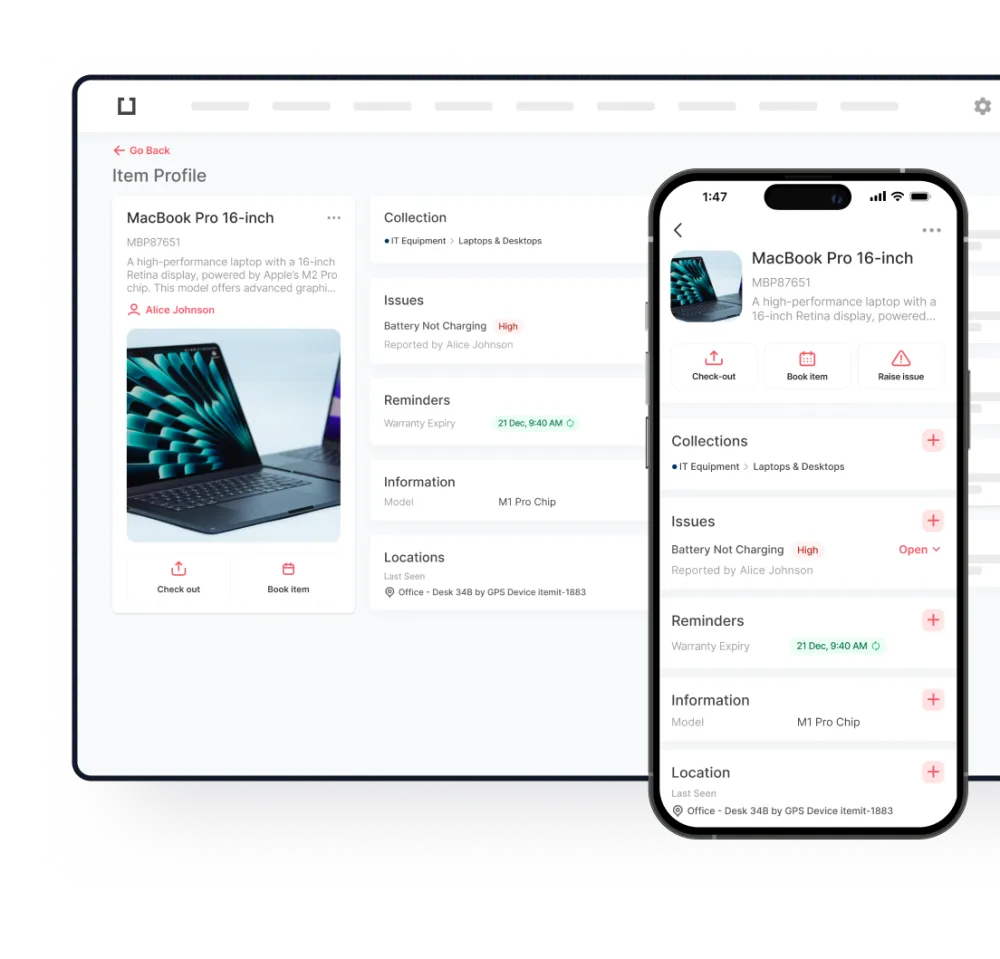
Each of your assets get their own unique asset profile, ready for you to start tracking things on a granular, asset level. So, if you need to know the location of a particular laptop, you can use the unique asset profile to find this.
If you already know a lot about your assets, or if you already have a fixed asset register in the form of a spreadsheet, you can opt for an import service. With this, you'll consult with a team that can tell you which fields should be which features and, after this, they'll import your data for you.
You can also use many bulk features to speed things along. For example, if you have multiple assets that have identical asset data, you only need to create one profile for this. Then, you can clone this asset 20 times at the click of a button to create more.
If you don't already know a lot about your assets, it's a good idea to audit while you're logging your assets. In other words, using your asset tracking app, move around your business and add assets whenever you find them. Incrementally, this will create a full, robust asset register.
2. Tag Your Assets
The next step is to tag your assets. Asset tags speed up many asset operations. Your asset management software will come with an app, and you'll be using this app to perform these operations.
Whenever you scan an asset's tag, first of all, the profile will open. This means that if you want to use your asset management software as check in check out software, you only need to scan an asset's tag and click "check out".
Then, every scan will also update your asset's last seen location using your phone's GPS data. The user who scanned the tag and the time of the scan is also logged, giving you a tidy audit trail of asset movements. This even works offline, your asset management software will simply update when you reconnect to WiFi or get more signal.
 Watch video
3. Collect Live Data
The next step is to start collecting and reporting on live asset data. If in step 1. you've created fairly empty asset profiles, now is the best time to populate them.
Here you'll want to formalise the wording of certain fields, such as if you're using your system for PAT test tracking you'll need to create PAT test reminders with the same name for reporting purposes. In other words, do you want to name reminders "PAT test due", "PAT test", or "PAT test due date"? All of your reminders should have the same name, here.
Once you've logged this data, you'll be up and running and able to continue collecting data. It's simple, right? To do so at this stage, all you'll need to do is scan an asset's tag and add any changes.
As your system will be cloud-based, any changes you make on your asset tracking app will be reflected in your asset management web portal, too, ready for you to run and export reports on.
These reports are great for insurance and tax purposes, too, as they will be a clear log of which assets you own and how these assets are behaving.
4. Share Your Asset Management Software
The final deployment step is to share your asset management software with your colleagues. They say "a job shared is a job halved", but this isn't quite the case. The job is halved if you share your system with one person, so imagine if all of your colleagues are spending seconds updating your asset records daily.
This creates a highly scalable, highly transparent, highly effective asset management system where everything you need to know is visible, transparent and exportable.
To find out more about how itemit's asset management software can help your business, you'll be able to contact the itemit team at team@itemit.com. You can also book a demo here and fill in the form below to start your 14-day free trial.